Branda v1.1: pick your image model, generate 50% faster, and see exactly how every logo was made
Branda v1.1 adds an image model picker, 1–3 images per run, up to three batches generating at once, a redesigned prompt box with a Visual Prompt drawer, model and prompt details, and a mobile-optimized studio.
· The Branda team
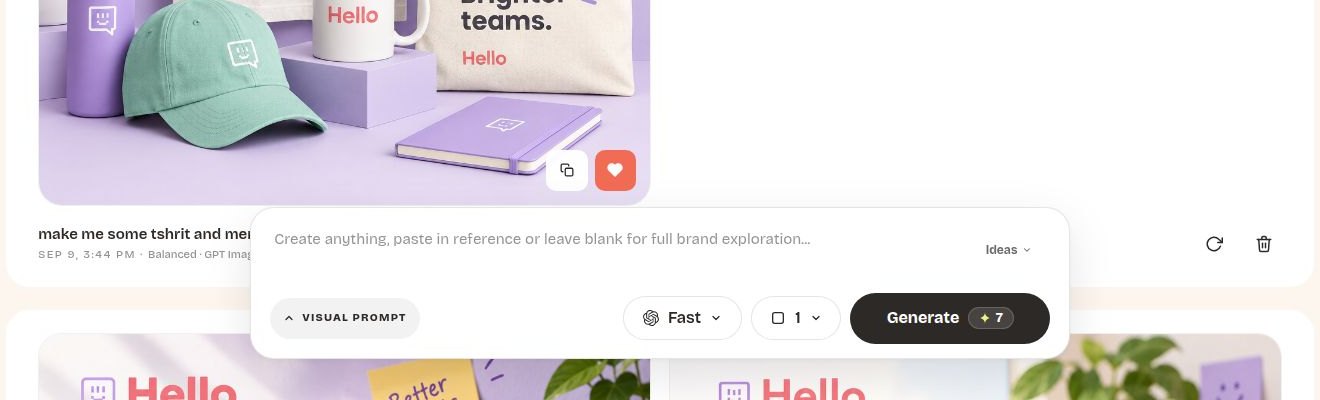
Today's update is about control. Until now, Branda picked the image engine for you and always gave you three mockups per run. v1.1 hands those decisions to you, makes the default path noticeably faster, and lets you run multiple batches without waiting for each one to finish. It also shows you which model and prompt produced every logo and mockup in your project. Here is what changed.
Choose your image model: Fast, Balanced, Precise, or Google
Every generation surface — logo sketches, vectorized designs, Exploration mockups, and the Extract tool — now has a model picker next to the Generate button. Each preset is a different engine and quality tier, priced per image so you always know what a run costs before you start.
| Preset | Engine | Best for |
|---|---|---|
| Fast | GPT Image 2.5 Flare | Exploring lots of directions quickly — the default |
| Balanced | GPT Image 2.5 Flare · Medium | Sharper detail and cleaner type, still quick |
| Precise | GPT Image 2.5 Sunburst · Medium | Cleaner text and intricate detail — ideal for polished visuals |
| Nano Banana 2 | Versatile image creation — rich visuals, realistic scenes, and clear text |
Your choice is saved with the project, so you don't have to re-pick it every session. Credits shown on the Generate button update live as you switch.

New default engine: GPT Image 2.5 Flare, about 50% faster
Fast now runs on GPT Image 2.5 Flare. In our bake-off it produced logo sketches and mockups about 50% faster than the previous default at the same credit price, with comparable quality on brand-style imagery. If you preferred the old look for a specific project, Balanced and Precise are one click away.
Generate 1, 2, or 3 images per run
Exploration used to produce three mockups every time. You can now pick one, two, or three per run from the count picker beside the model. One image is great for iterating on a single composition or testing a prompt cheaply; three is still there when you want a spread to compare. Pricing scales with the count.
Multi-generation: run up to three batches at once
You no longer need to wait for one generation to finish before starting another. Launch a batch, try a different direction, and start the next while the first is still working. Multi-generation is available in Exploration and for both logo sketches and vectorized designs.
- In Exploration, start a generation, then change your prompt, model, or image count and click Generate again. Try packaging, a social post, and a website hero in parallel.
- On the Logo tab, use New batch again to explore another set of sketches or vectorized designs while earlier batches are still running.
- Track each batch separately: Exploration gives it a pending row, while Logo gives it a Generating page. Each has its own progress, timer, and Stop control.
When all three slots are busy, the button shows “3 running · wait” until a slot opens. Each batch uses credits at the settings shown when you start it. Stop applies only to that batch and remains subject to the daily cancellation limit.
A redesigned prompt box with a Visual Prompt drawer
The Exploration prompt box has been rebuilt as a floating composer pinned to the bottom of the page. Everything you need lives inside it: the prompt, an Ideas menu with quick-start prompts and an AI suggestion, the model and count pickers, and Generate.
The Visual Prompt drawer opens inside the box and shows the brand elements Branda sends with every run — your locked logo, palette, fonts, lockup, and any reference image — as square tiles you can toggle on or off. It makes it obvious what the model is being told about your brand, and lets you pull an element out when you want a looser exploration.
See the model and exact prompt behind every logo and mockup
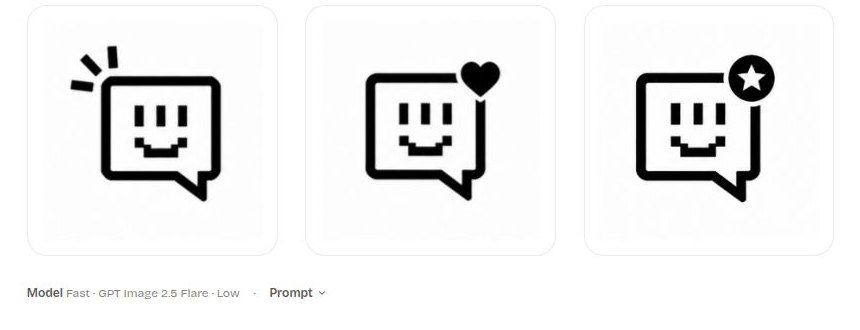
Under every sketch and vector batch on the Logo tab you'll now find a line naming the preset and engine used, plus a Prompt disclosure that expands to the exact text Branda sent. Exploration cards carry the same information in their footer — date, preset, and engine — so you can reproduce a result you love or understand why two batches look different.
Extract gets its own model picker
When you box a region of a mockup to turn it into a standalone asset, you can now choose Fast, Precise, or Google for the extraction. Precise is the pick for reproducing an exact element; Google tends to do best with text-heavy crops.
Mobile-optimized studio
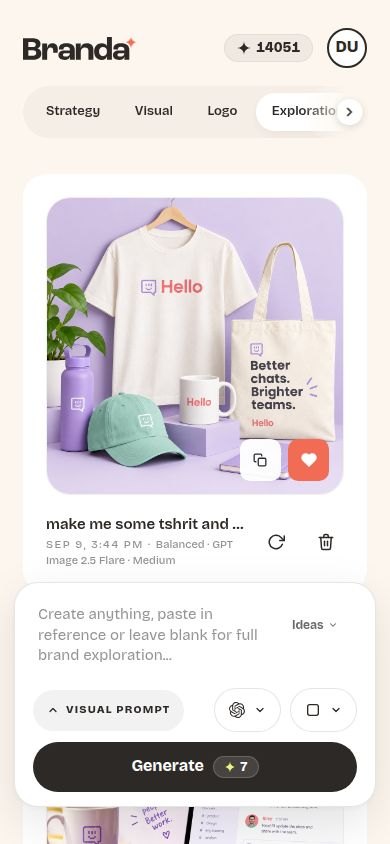
Everything above works on a phone. The composer, the Logo tab controls, and the Extract modal were reflowed for small screens, and the floating feedback bubble that used to cover the bottom corner is gone — you'll find Send feedback in your account menu instead.
Try it
Open any project, head to Exploration or Logo, and look next to the Generate button. If you're new, you get 200 free credits on signup — enough to try each preset and see which one fits your brand.